In this article
- What iptviva is (and isn’t)
- The Home screen: today’s matches, with a channel that works
- Films and series, like a streaming service
- One search for everything
- Live TV in your languages
- Set up in minutes, on every screen
- iptviva vs a player and a playlist
- Your account, plans and payment
- Good to know before you try it
- How to try it
- Frequently asked questions
The iptviva app is a ready-to-use TV app: you sign in with your email and start watching, with no player or playlist to set up. It opens on today’s football matches with a channel that’s working for each one, shows films and series in a Netflix-style catalogue, and finds anything with a single search, on your TV, iPhone, iPad or laptop.
This guide explains what iptviva is, how each part works, how to set it up on every screen, and what to know before you try it.
What iptviva is (and isn’t)
Most IPTV apps you read about here, such as TiviMate or IPTV Smarters, are empty players: they show whatever playlist a provider gives you, and you have to enter it, add a TV guide link and tweak settings on every device.
iptviva is different. It’s a complete service with its own app: the channels, films and series are already there. You create an account with your name, email, WhatsApp number and a password, and that same account works on all your screens. There’s no playlist URL, no server address and no MAC address to look up or send to anyone.
The Home screen: today’s matches, with a channel that works
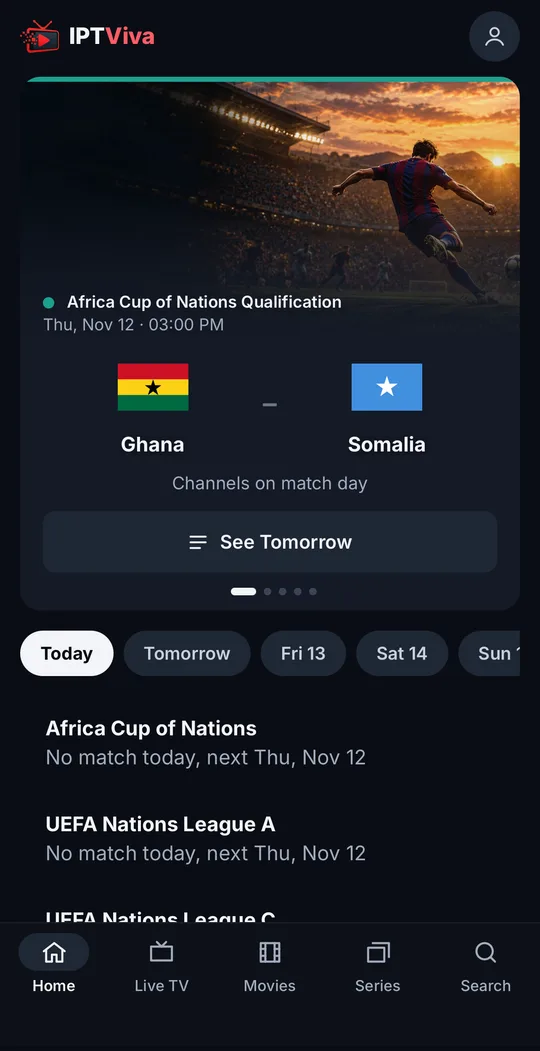
This is what sets iptviva apart. The app opens on a slider of today’s football matches, picked for you: someone in Spain sees LaLiga and Spanish commentary first, someone in the UK sees the Premier League. Below come the matches on now and later today.
Each match has a Watch now button that takes you straight to a channel showing it. The interesting part is how that channel is chosen:
- Shortly before kick-off and during the match, the service tests the channels that carry it: how fast they start, whether the picture keeps up with live, and whether they pause or drop.
- Only channels that passed a recent test are listed, and channels that viewers report as buffering or frozen drop out.
- If every channel for a match fails, the match isn’t listed at all, so you don’t land on a dead link at kick-off.
In practice, that means less zapping between broken channels five minutes before a big game.
Films and series, like a streaming service
Films and series are browsed the way you’d expect from Netflix: posters in rows, details pages, and a Continue watching row so you can pick up where you left off. You can add titles and channels to Favorites to find them quickly.
One search for everything
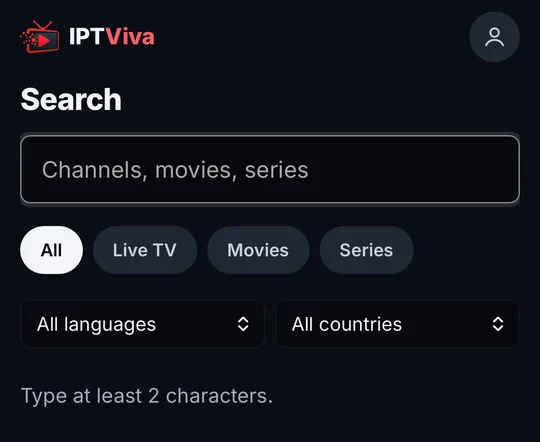
A single search box covers channels, films and series at once. Type a team, a channel or a title and the results come from the whole catalogue, instead of you digging through categories with the remote.
Live TV in your languages
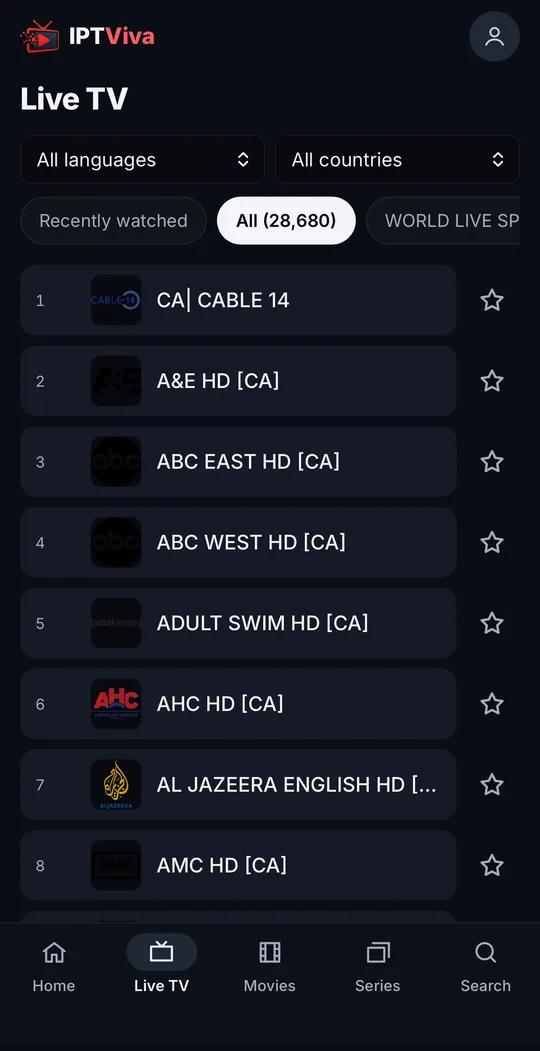
The first time you log in, iptviva asks which languages you watch (it suggests some from your country). The channel list is then filtered to those languages, which keeps it short and makes it load much faster on a Fire TV Stick or a phone than a huge worldwide list. You can change the choice at any time in your account.
On live channels you can pause and resume, and the guide shows what’s on now and next, roughly 24 hours ahead.
Set up in minutes, on every screen
| Device | How to get iptviva |
|---|---|
| Fire TV Stick (Fire OS) | Install the free Downloader app, type code 7979931, install iptviva and sign in |
| Android TV / Google TV | Open app.iptviva.com/tv.apk in the TV’s browser, or use Downloader with the same code |
| iPhone and iPad | Open app.iptviva.com in Safari, then Share → Add to Home Screen |
| Laptop or computer (Windows, Mac) | Open app.iptviva.com in your browser: nothing to install |
| Android phone or tablet | Open app.iptviva.com in the browser and sign in |
| LG and Samsung smart TVs | Supported, but installing takes extra steps (developer mode on LG, a sideloading tool on Samsung) |
On a Fire TV Stick the whole thing takes a few minutes, and then there’s nothing else to configure. Compare that with a typical player, where you install the app, type a long playlist address with the remote, add a guide link and wait for everything to load, then repeat it on every TV. If you’re still choosing a streaming device, see the best IPTV player for Android TV and Fire Stick.
iptviva vs a player and a playlist
| iptviva | A player + a playlist (TiviMate, Smarters…) | |
|---|---|---|
| What you install | One app | A player, plus a playlist from a provider |
| Login | Email and password | Playlist URL or server, username and password |
| Today’s matches | On the Home screen, with a tested channel | You search the channel list yourself |
| Films and series | Netflix-style catalogue | Depends on the player |
| Devices | TV, iPhone, iPad, laptop, Android | Depends on the player (TiviMate: Android TV only) |
| Who to contact if something breaks | iptviva, on WhatsApp | The provider and the app developer separately |
For a deeper look at the two best-known players, see TiviMate vs IPTV Smarters.
Your account, plans and payment
- One account, every screen. Sign in with the same email on your TV, phone and laptop.
- Plans by number of screens: Standard lets one screen watch at a time, Premium two.
- Payment by PayPal or crypto, with no automatic renewal: nothing is charged again unless you choose to renew.
- A 7-day technical satisfaction guarantee, and support on WhatsApp.
- The app speaks your language: English, Spanish, French, German, Norwegian and Swedish.
Good to know before you try it
To keep things honest, here’s what iptviva doesn’t do (yet):
- The TV guide shows now and next (about 24 hours ahead), not a multi-day grid like TiviMate.
- There’s no catch-up or recording yet.
- There’s no Apple TV app; on Apple devices it works on iPhone, iPad and Mac.
- On LG and Samsung TVs, installing it takes more steps than on a Fire TV Stick.
- It plays its own catalogue only: you can’t load another provider’s playlist into it.
How to try it
The quickest way to judge is to watch on your own TV and connection, ideally at the time you usually watch. iptviva has a free trial that starts in the app as soon as you create your account and confirm your email. If anything stutters, check your network first: our buffering fixes apply to any app. Everything else is on the iptviva app page.
Frequently asked questions
Do I need an M3U playlist or Xtream Codes for iptviva?
No. iptviva comes with its own channels, films and series. You only need an account with your email and a password; there is no playlist, server address or MAC address to enter.
Which devices does iptviva work on?
Fire TV Stick (Fire OS), Android TV and Google TV, LG and Samsung smart TVs (with a few extra install steps), iPhone and iPad, Android phones and tablets, and any laptop or computer through the browser. There is no Apple TV app yet.
Can I try iptviva before paying?
Yes. There is a free trial that starts in the app right after you create your account and confirm your email, with no waiting for anyone to send you login details.
How does payment work?
You pay by PayPal or crypto, and the plan does not renew automatically. Plans differ by how many screens can watch at once (one with Standard, two with Premium), and a 7-day technical satisfaction guarantee applies.